How to Rearrange PDF Pages Locally (No Upload)
Reorder a PDF locally in your browser without uploading the document.
Rearrange PDF Pages NowHow to Prepare Your Document for Reordering
Imagine a merged deposition exhibit with the signature page buried in the middle. A client's tax packet has schedules stacked in the wrong sequence. The fix takes thirty seconds, but the file contains sensitive information, and the obvious free tool wants it uploaded to a server you can't audit. There are over 2.5 trillion PDF files in existence globally, according to the PDF Association. That volume is why so many free reordering services exist, and why so few of them are appropriate for confidential material. A browser-native tool processes the file in your tab using local memory — the bytes never traverse a network. Before you touch anything, duplicate the original and work on the copy.
Step 1: Upload Your File to a Local-First Utility
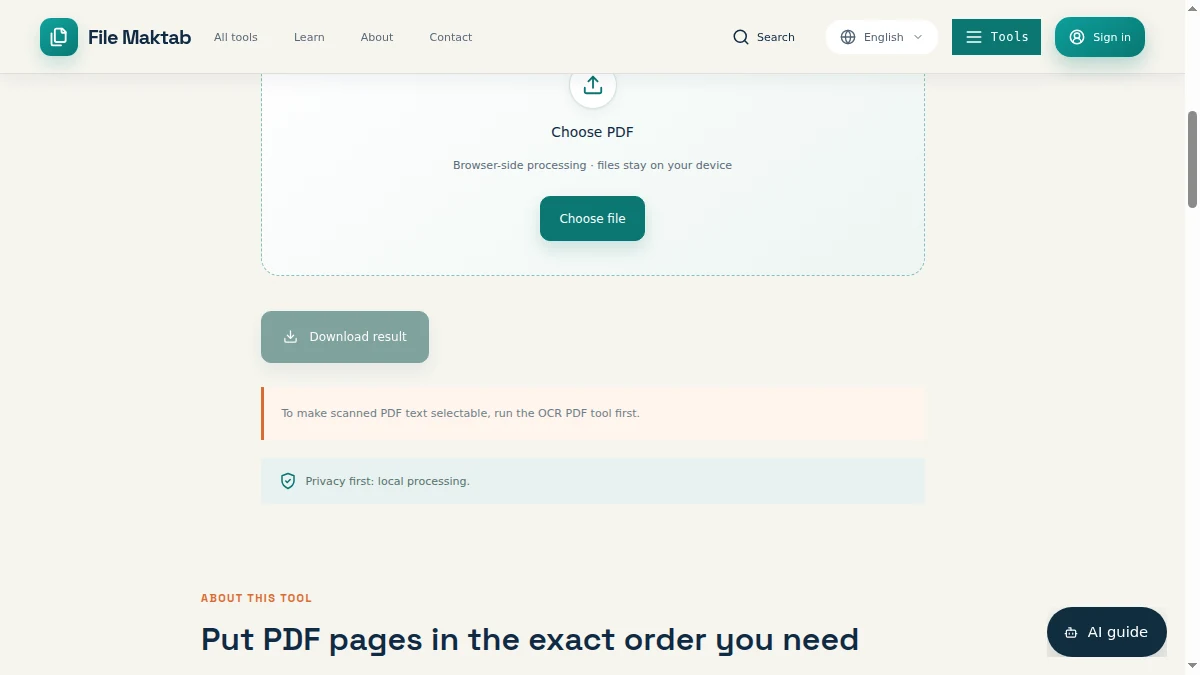
Loading the file is where you make the privacy decision. Once a document reaches a remote server, no amount of care in later steps pulls it back. Open a browser-based PDF tool such as Filemaktab in a fresh tab. Avoid anything that gates the editor behind a signup form — a page-ordering task requires no account. Confirm the tool states that processing happens in your browser before you add the file. Click the "Select File" button, or drag the PDF directly onto the browser window. Wait for page thumbnails to render in the preview pane. If the tool shows a progress bar labeled "Uploading," stop and close the tab. Local processing has no upload stage.
Step 2: Select and Reorder Individual Pages
With thumbnails loaded, the interface behaves like a desktop file manager. Click a page thumbnail once to select it. The tile should show a border, highlight, or checkmark confirming the selection. Hold the mouse button down on the selected tile and begin dragging. An insertion marker or gap appears between neighboring pages to show where the page will land. Drag the page to its target position in the sequence. Release the button to drop the page. Surrounding page numbers renumber immediately. Shortcut tip: hold Shift and click a second thumbnail to select every page between the two, or hold Ctrl (Cmd on macOS) and click to add non-adjacent pages one at a time.
Step 3: Manage Bulk Moves and Rotations
Legal and financial documents arrive in blocks. Move them as blocks, not page by page, so the internal sequence of each section survives the edit. Select the full range using Shift-click for contiguous pages or Ctrl/Cmd-click for scattered ones. Drag any tile within the highlighted group to the new location. Scan the thumbnails for orientation mismatches. Click the rotate icon on each affected thumbnail until the content sits upright. Warning: Check orientation before exporting, not after. Printers and e-filing portals read rotation metadata written at export.
Step 4: Verify Internal Links and Bookmarks
Reordering changes page positions, but it does not rewrite everything that points at those positions. A PDF carries navigational structures — internal link annotations, bookmark destinations, cross-reference targets. Open the exported file in a standard viewer and work through this list: Click three or four internal "go to page" links and confirm each lands on the intended content. Read the table of contents against the new sequence and correct any page numbers by hand. Open the bookmarks panel and check the entries still run top to bottom. For booklet or duplex output, confirm the imposition order prints as intended on a single test copy.
Step 5: Export and Save Your Reorganized PDF
Click "Save" or "Download" once the thumbnail grid matches your intended sequence. Name the output to reflect the revision, such as Document_v2_Ordered. Never overwrite the original; you want a clean fallback if the sequence is wrong. Open the downloaded file in your standard viewer and page through it. Clear the browser tab and local cache if you are working on a shared machine. You'll have a single resequenced document with no server-side copy anywhere in the chain.
Handling Advanced Scenarios: Reverse Order, Booklet Printing, and Merging
Reverse Order: To rearrange pdf pages in reverse order, select the last page, hold Shift, and click the first page to select all. Then drag the entire block.
Booklet Printing: When you rearrange pdf pages for booklet printing, ensure the page order matches your printer's imposition requirements (usually 1, 2, N, N-1).
Merging & Deleting: If you need to merge and rearrange pdf pages, or delete and rearrange pdf pages, combine files first, then drag thumbnails to reorder them, and click the trash icon to remove unwanted pages.
Why Choose Local Processing Over Adobe Acrobat and iLovePDF
When you rearrange pdf pages in Adobe Acrobat or use iLovePDF, your files are uploaded. A local-first tool ensures that when you change pdf pages order or change pdf page size, the document stays on your hardware. This is the easiest way to rearrange pdf pages free no sign up.
Maintaining Compliance: HIPAA, GDPR, and Local File Processing
If you rearrange pdf pages online using cloud servers, you introduce third-party compliance risks. Local processing ensures zero data transfer, keeping your files secure.
Troubleshooting: Why Can't I Rearrange PDF Pages?
If you are on Mac and ask "Why can't I rearrange pdf pages in preview?", it's because Preview has limited drag-and-drop for large files. Use a browser tool instead. If you are on mobile (iPhone/iPad), desktop browsers offer better drag-and-drop than mobile apps.
How to Ensure Success: Key Takeaways
- Choose local-first tools.
- Work on a copy.
- Use Shift and Ctrl/Cmd.
- Audit links and the table of contents.
- Confirm orientation before export.
- Skip registration walls.
Choosing a Smarter Workspace for Your Documents
Filemaktab delivers local processing in a browser tab. Whether you need to rearrange pdf pages mac, windows, or on iphone, the file never leaves your device.
Frequently Asked Questions
How do I rearrange PDF pages for free?
Use a local browser-based tool like Filemaktab. Upload, drag, and download without paying or creating an account.
Can I rearrange PDF pages on iPhone or Mac?
Yes. On Mac, use a browser tool instead of Preview. On iPhone, open Safari or Chrome, load the tool, and use touch to drag pages.
How do I rearrange pages in a PDF in reverse order?
Select the entire block of pages and drag them to the reverse order, or use a tool with a "reverse" function.
What is the easiest way to rearrange PDF pages?
Use a drag-and-drop interface in a browser. It requires no installation and processes files locally.
Can I merge and rearrange PDF pages at the same time?
Yes. Merge the files first to create one document, then drag the thumbnails to reorder them.
How do I delete and rearrange PDF pages?
Reorder the pages you want to keep, and click the delete/trash icon on the pages you want to remove before saving.
Why can't I rearrange pages in Adobe Acrobat?
Acrobat Reader (free) does not support page reordering. You need Acrobat Pro, or you can use a free browser tool.
Is it safe to rearrange PDF pages online?
Only if the tool processes files locally in your browser. Cloud tools upload your files, which is a privacy risk.
How do I rearrange PDF pages for booklet printing?
Order the pages sequentially, then configure your printer's booklet layout settings to handle the imposition.
Do I need to create an account to rearrange PDF pages?
No. Filemaktab requires no account, no email, and no signup.
Does rearranging pages reduce PDF quality?
No. Reordering only changes the page index, not the content or compression, so quality remains intact.
How do I rearrange PDF pages in Windows 11?
Open Edge or Chrome, navigate to a browser-based PDF tool, and drag the pages. No software installation is needed.
Can I rearrange PDF pages in Google Drive?
Google Drive does not natively support page reordering. Download the file, reorder it locally, and re-upload.
How do I change the page order in a PDF file?
Open the PDF in a browser tool, click and drag the page thumbnails into your desired sequence, and save.
What is the best free tool to reorder PDF pages?
Filemaktab offers a free, private, local-first tool to rearrange PDF pages without uploading.
File Maktab content is educational and reflects current tool limits. No affiliate links are active in this version.