How to Merge PDF Files Locally (No Upload)
Merge PDF files locally in your browser without uploading the document.
Merge PDF NowHow to Prepare Your Files for a Secure Merge
The PDF is the default container for anything that matters — signed contracts, audited statements, closing binders, grant applications. Adobe Acrobat handled 400 billion PDF opens and 16 billion file edits in a single year, which gives you a sense of how much confidential material moves through this one format. Spend five minutes on preparation and the merge itself takes seconds.
Before you open any tool, work through this checklist:
- Collect every source document into a single local folder so you are never hunting through Downloads mid-task.
- Confirm each file is actually a PDF. Convert scans, screenshots, and JPEGs first — most mergers will silently skip anything else.
- Rename files with a numerical prefix: 01_Engagement_Letter, 02_Schedule_A, 03_Exhibits. Your file explorer sorts them, and the merge tool inherits that order.
- Check every file for password protection before you start. Encrypted PDFs cannot be merged until they are unlocked.
Preparation is also the first compliance step. Local browser-based processing helps businesses meet strict GDPR and industry-specific compliance requirements without needing complex data transfer agreements — but only if the files you feed it stay on your machine from the beginning.
Step 1: Select a Privacy-First PDF Merger Tool
Not every free tool works the same way under the hood. The distinction that matters is where the processing happens: on a remote server you do not control, or inside the browser tab already open on your desk. Read the tool's description before you drag a single file into it.
Local processing via JavaScript or WebAssembly (WASM) in the browser ensures 'Zero Data Transmission,' meaning files never leave the user's computer. In practical terms: the merging code is downloaded to you, rather than your documents being uploaded to it.
Apply three filters when choosing. Reject anything that demands registration for a basic merge — an account exists to store something. Look for an explicit statement of local or browser-native processing rather than a vague "secure" badge.
Step 2: Upload Your Documents to the Local Interface
With your folder prepared, load the files into the interface. Despite the word "upload" appearing on most buttons, nothing travels anywhere.
Open the Filemaktab merge tool in your preferred browser. Once the page finishes loading, you can disconnect from the internet entirely and the tool will keep working.
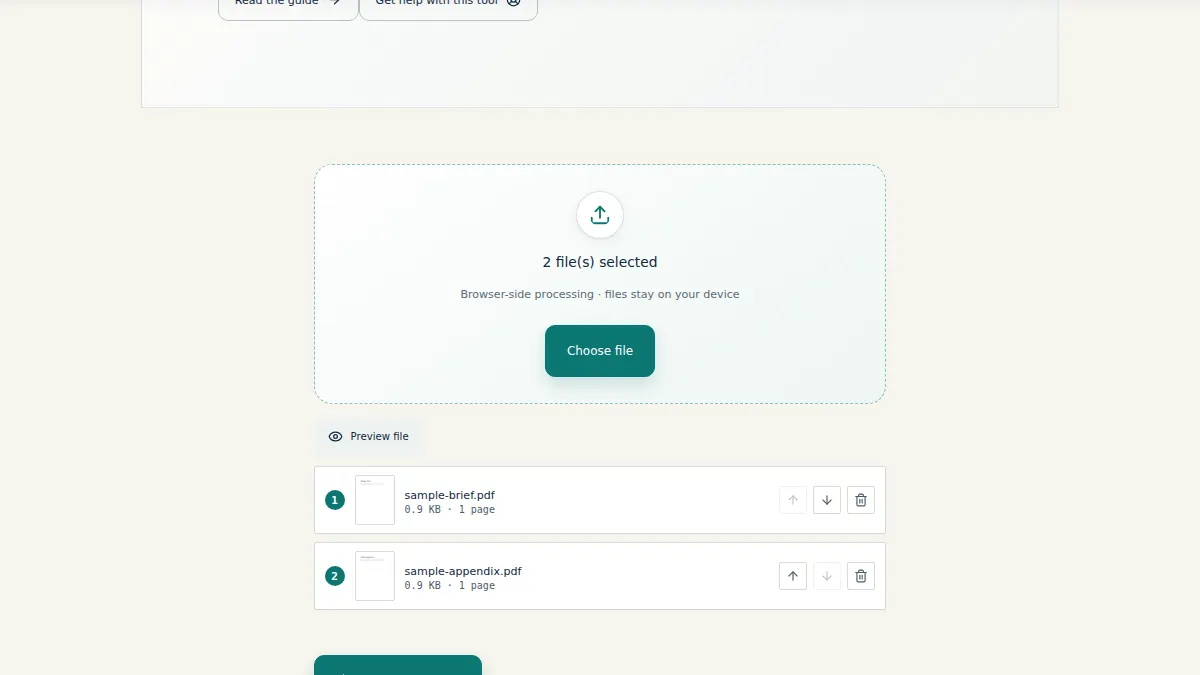
Drag your prepared files from the folder directly into the drop zone in the browser window. Select them all at once so they land in their numbered order.
Watch what does not happen. There is no upload progress bar, no percentage counter, no "transferring" spinner — the files register instantly because they are being read from your disk, not sent across a network.
Step 3: Arrange and Organize the Document Order
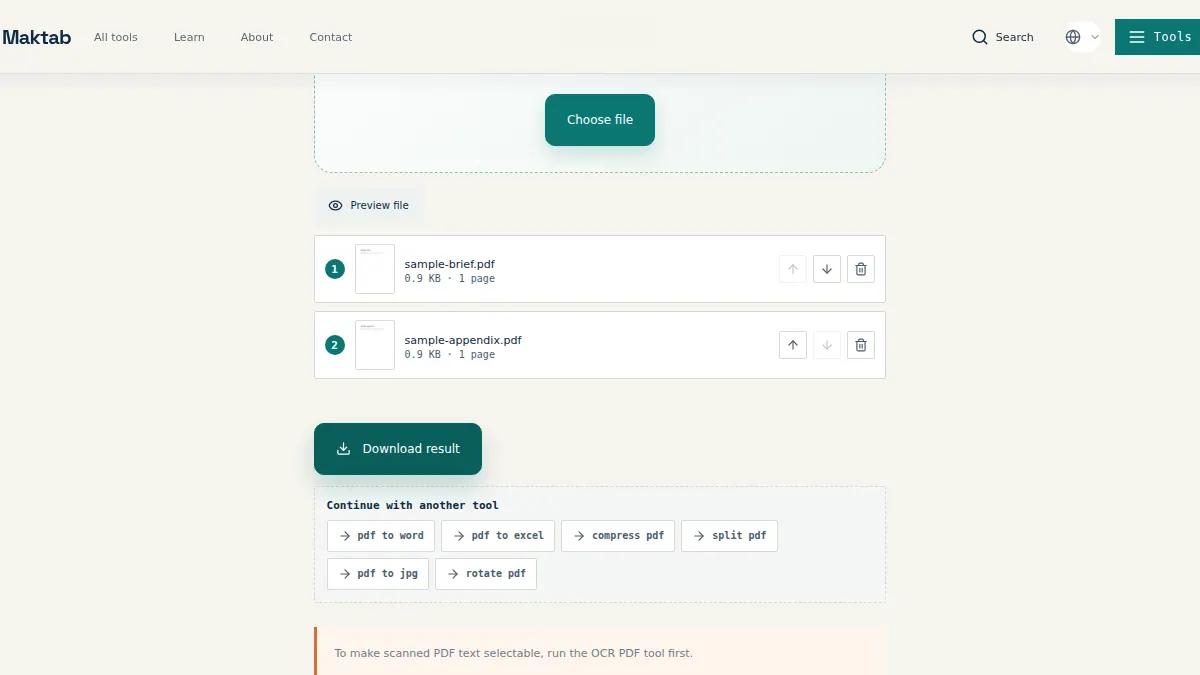
Your numbered filenames should have landed the set in roughly the right sequence, but review it anyway. A misplaced exhibit in a filed document costs far more than the thirty seconds this check takes.
- Click and drag any file thumbnail to a new position in the sequence.
- Click the delete icon on duplicates or pages that crept in from a bad scan.
- Add a missing document by dragging it into the pane at any point.
- Use the rotate control on sideways or upside-down scans.
Document flow is substantive, not cosmetic. A reviewer reading a combined file assumes the order reflects your intended argument: cover letter, then terms, then supporting schedules.
Step 4: Execute the Merge and Save Locally
The last step produces your single file and writes it straight to your hard drive.
- Click the Merge button to run the combining script inside your browser.
- Wait for completion. Local merges are typically instantaneous.
- Choose a destination folder when the save prompt appears, and give the output a descriptive name rather than accepting merged.pdf.
- Open the saved file and scroll through it. Confirm the page count matches your expectation.
Saving locally is quicker than a cloud download for a simple reason: a server-based tool has to receive your files, process them, and then send the result back. A browser-native merge skips both legs of that trip.
Handling Advanced Scenarios: Merging Images, Word Files, and Removing Pages
Merge PDF and JPG/JPEG: Filemaktab allows you to merge pdf and jpg or merge pdf and jpeg files directly by converting them in the browser memory first.
Merge PDF and Word: If you need to merge pdf and word, convert the Word document to PDF locally first.
Merge and Remove Pages: You can merge pdf and remove pages in a single workflow. Simply merge the files, then click the delete icon on unwanted pages before saving.
Merge and Rearrange: To merge pdf and rearrange pages, drag the thumbnails into your desired sequence after combining.
Merge Without Losing Quality: A local tool ensures you merge pdf without losing quality, as there is no server-side compression.
Digital Signatures: If you want to merge pdf without losing digital signature, local processing preserves the integrity of the signed byte range.
How to Automate PDF Merging on Windows 11
If you merge the same category of documents weekly — monthly statements, intake packets, timesheet batches — build the routine once and stop repeating it by hand.
- Open Power Automate Desktop, which ships natively with Windows 11.
- Create a new flow and select the Merge PDF action.
- Configure the flow to watch a specific folder.
- Set the output destination to a separate folder and run a test batch.
Because the flow runs on your own machine, the documents never touch an external service. That keeps an automated workflow on the same footing as a manual browser merge.
Why Choose Local Processing Over Adobe Acrobat and iLovePDF
When you merge pdf in adobe acrobat or use ilovepdf merge pdf, your files are uploaded. A local-first tool ensures that when you combine pdf files into one, the document stays on your hardware. This is the easiest way to merge pdf without uploading, merge pdf without login, and merge pdf without limit.
How to Maintain Secure PDF Workflows: Key Takeaways
- Verify Zero Data Transmission before merging anything covered by client confidentiality.
- Use a local browser tool such as Filemaktab to merge PDF without uploading.
- Rename and number your source files before opening any interface.
- Automate high-volume, repetitive merges with native OS tools.
Knowing how to merge PDF files for free is a small skill with an outsized privacy payoff.
Choosing a Smarter Workspace for Your Documents
Filemaktab delivers local processing in a browser tab. Whether you need to merge pdf mac, merge pdf windows, or merge pdf google drive, the file never leaves your device.
Frequently Asked Questions
How do I merge PDF files for free?
Use a local browser-based tool like Filemaktab. Drag your files, arrange them, and save without paying or creating an account.
Is it safe to merge PDF online?
Only if the tool processes files locally in your browser. Cloud tools upload your files to a server, which is a privacy risk. Filemaktab keeps files on your device.
How do I merge PDF files without Adobe Acrobat?
You don't need Adobe. Open a browser-native tool like Filemaktab, drop your PDFs, and merge them instantly without an Adobe subscription.
Can I merge PDF and JPG files together?
Yes. Filemaktab allows you to merge pdf and jpg or jpeg by converting them locally in the browser.
How do I merge PDF and Word files?
Convert the Word document to PDF first, then use the merge tool to combine it with your other PDFs.
How do I merge PDF without losing quality?
Local processing avoids server-side compression, ensuring you merge pdf without losing quality.
Can I merge PDF and rearrange pages at the same time?
Yes. Merge the files first, then drag the thumbnails to rearrange pdf pages into your desired order.
Can I merge PDF and remove pages?
Yes. After merging, click the delete icon on any unwanted pages before saving.
Is there a limit to how many PDFs I can merge?
No. Because processing is local, the only limit is your device's memory. You can merge pdf without limit.
Do I need an account to merge PDF files?
No. Filemaktab requires no sign-up, no email, and no login.
How do I merge PDF files on Mac?
Open Safari or Chrome, go to Filemaktab, and drag your files. There is no need to install software to merge pdf mac.
How do I merge PDF on Windows?
Use Edge or Chrome. You can also automate tasks with Power Automate to merge pdf windows files locally.
How do I merge PDF from Google Drive?
Download the files from Google Drive to your device, merge them locally using Filemaktab, and re-upload the result.
What does "Zero Data Transmission" mean?
It means your files are never sent to a server. The merging happens entirely in your browser's memory.
Can I merge PDF without losing digital signature?
Yes, local processing preserves the document's structure, ensuring you merge pdf without removing digital signatures.
File Maktab content is educational and reflects current tool limits. No affiliate links are active in this version.