How to Split PDF Files Locally (No Upload, No Quality Loss)
Step 1: Select Your Privacy-First PDF Tool
A merger agreement, a client's tax return, a sealed court exhibit — these are the files that land in a PDF splitter, and most free online tools handle them by shipping a copy to a server you have never audited. Before you split anything, decide where the processing happens.
Choose a tool that processes files locally in your browser. If the file never leaves your device, there is no upload log, no server-side cache, and no retention policy to read.
Two criteria separate a professional utility from a liability. First, it must handle the current PDF specification properly: the initial edition of PDF 2.0 was the culmination of nine years of work by approximately 30 subject-matter experts, and a tool that silently flattens or discards those structures will degrade your output. Second, it must work without an account — a registration wall on a one-off utility task means your email and file metadata are being collected for reasons unrelated to splitting a document.
Skip anything that asks you to "email yourself the result." That is an upload by another name.
Step 2: Upload and Analyze Your Document Structure
Load the file and look at it before you decide how to cut it. A 40-page contract and a 900-page discovery bundle call for different splitting modes, and the thumbnails tell you which you have.
- Drag and drop your PDF into the local processing zone, or use the file picker if your browser blocks drag events.
- Wait for page thumbnails to render. On a large file this takes a moment — the rendering is happening on your machine, not on a remote server, so speed depends on your own hardware.
- Scroll the thumbnail grid and confirm the page count matches what you expect. A mismatch usually means the source file has embedded attachments or a corrupted page tree.
- Note the page geometry. Flag any pages that are landscape, oversized, or visibly rotated relative to the rest.
Technical note: modern specification documents are not small. The BS ISO 32000-2:2020 standard document consists of 1,004 pages, which gives you a sense of the scale a serious splitter needs to handle without stalling. If your tool freezes on a file of that size, it is rendering inefficiently and will likely mangle the output too.
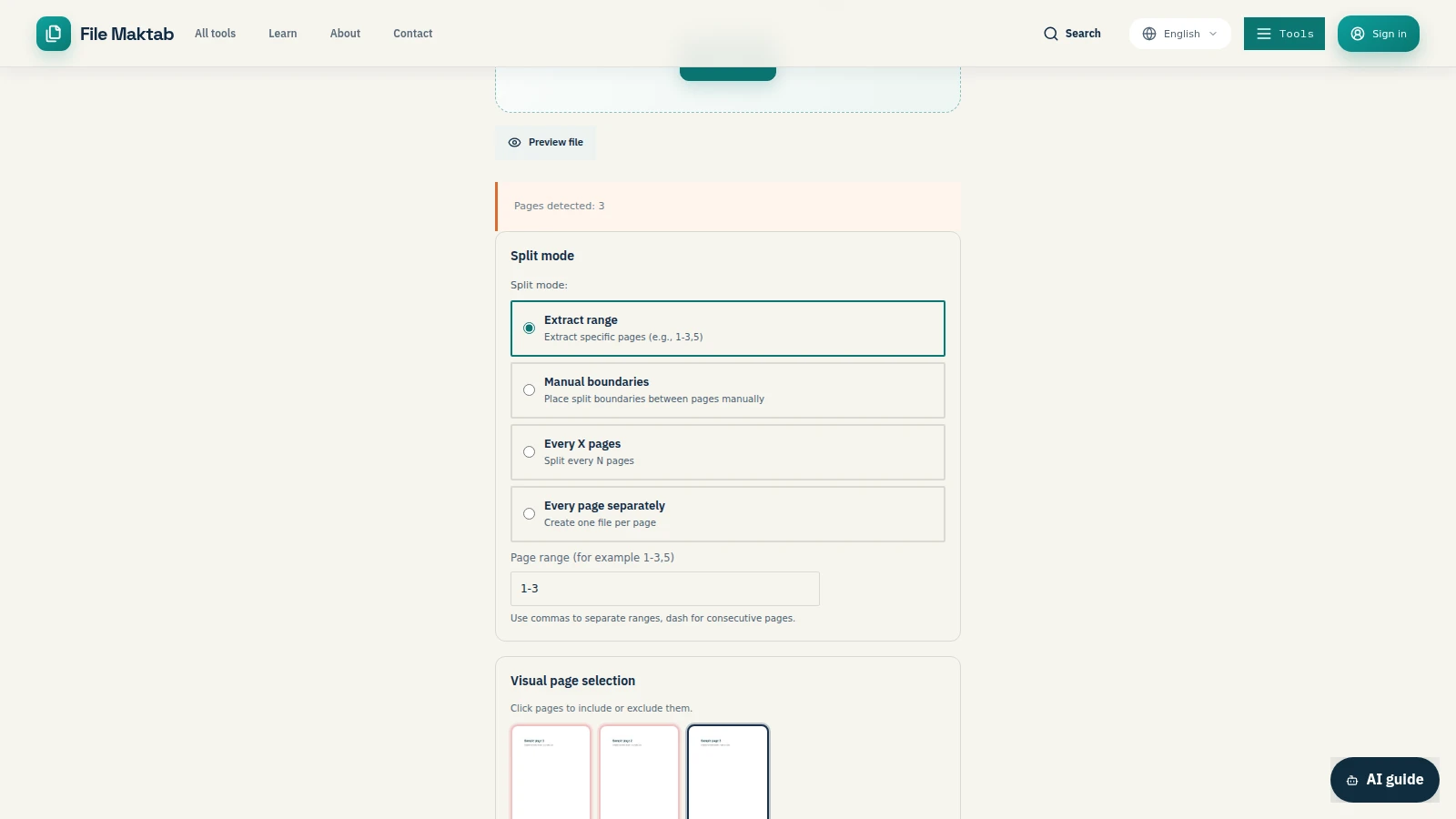
Step 3: Choose Your Extraction or Splitting Mode
Extracting and splitting are not the same operation. Extracting pulls selected pages out into a new document and leaves the original intact. Splitting divides the whole file into a set of smaller files with nothing left over. Pick based on what you need to hand off.
Extract All: Best for paginated exhibits, per-page Bates-stamped records. Result: one file per page. This is how you split PDF into individual pages when each page must stand alone in a filing index.
Range Split: Best for chapters, appendices, or a single witness statement inside a deposition transcript. Result: a defined set of multi-page files.
Extract Pages: Best for pulling three schedules out of a 200-page agreement. Result: one new document containing only your selection. This is the mode to extract pages from PDF without disturbing the source.
Split by File Size: Best for attachment caps and e-filing portals. Result: sequential files each under your chosen threshold. For accountants and litigators: set a size ceiling below your recipient's limit, not at it. Encoding overhead on the receiving end can push a file over a hard 25MB cap.
Step 4: Handle Special Layouts and Scanned Pages
Two layouts break naive splitters.
The Book Scan: someone laid an open volume on a flatbed, and every page in the resulting PDF is a landscape sheet containing two portrait pages side by side. Splitting that file by page gives you spreads, not pages. Fix it before you split: select the landscape pages and apply a "Split Down Middle" command, which cuts each sheet along its vertical center and writes out two portrait pages in reading order.
The Infinite-Scroll PDF: a web capture or chat export printed as one continuous page thousands of pixels tall. Use a Tiling function instead, which slices the continuous canvas into sequential A4 or Letter segments at a defined height. Set a small overlap between tiles so a line of text is never cut in half at the seam.
Handling Advanced Scenarios: Merging, Signatures, and Large Files
Split PDF and Merge: If you need to extract specific pages and combine them with another file, use our merge tool locally after splitting.
Split PDF Without Losing Digital Signature: Local processing preserves the document's structure, ensuring the signed byte range remains intact.
Split PDF Large Files (100MB+): Because processing happens in your browser, the only limit is your device's RAM. There are no server-side upload limits.
Split PDF Odd/Even Pages: Use the range splitter to isolate odd or even pages quickly for duplex printing.
Step 5: Execute the Batch Split Process
Confirm your mode and selection one last time in the preview pane. Deselecting a page after the split has run means starting over.
Click Split or Explode to begin processing. Work happens in the browser, so expect your CPU fan to spin up on a large file — that noise is the confirmation that nothing is being sent out.
Queue additional documents into the same session if you are working through an archive. Batch processing a folder of scanned records in one pass saves far more time than splitting them one at a time.
Watch the progress indicator through to completion. Do not close the tab or navigate away mid-process; local processing has no server-side job to resume from.
Inspect the first and last output in the results list before downloading. Page count, orientation, and text selectability should match the source — that is how you confirm you have split PDF without losing quality rather than re-rendering it at a lower fidelity.
Step 6: Verify and Save Your New Files
Download the output. A per-page split returns a ZIP archive; a range split typically returns individual files you can save directly to a case folder. Run this check before you delete the source:
- Local processing indicator: confirm it is still showing.
- Network activity: open your browser's developer tools, check the Network tab, and look for outbound POST requests carrying file data. A genuinely local tool produces none.
- File count: the number of outputs should match your selection exactly.
- Spot-check three files: open the first, one from the middle, and the last. Text should remain selectable, images should be sharp at 100% zoom, and any form fields or annotations you needed should still be present.
- Metadata: check document properties on one sample. Authorship and creation dates should carry through unless you deliberately stripped them.
Save the results into your matter or client folder immediately and clear the browser tab.
How to Maintain PDF Security: Key Takeaways
- Local browser processing is the baseline for confidential documents. If a PDF splitter transmits your file to a server, you have disclosed a client record to a third party.
- Splitting by file size is a practical necessity, not a convenience. Court e-filing portals and corporate mail gateways enforce hard attachment caps.
- Specialized layouts need specialized handling. Landscape book scans should be split down the middle, and continuous web-capture PDFs should be tiled with overlap.
- Confirm PDF 2.0 support before you process anything irreplaceable. Tools built against older specifications can discard structures they do not recognize.
- Keep the original until the split files have been verified. Then archive it.
Why Choose Local Processing Over Adobe Acrobat and iLovePDF
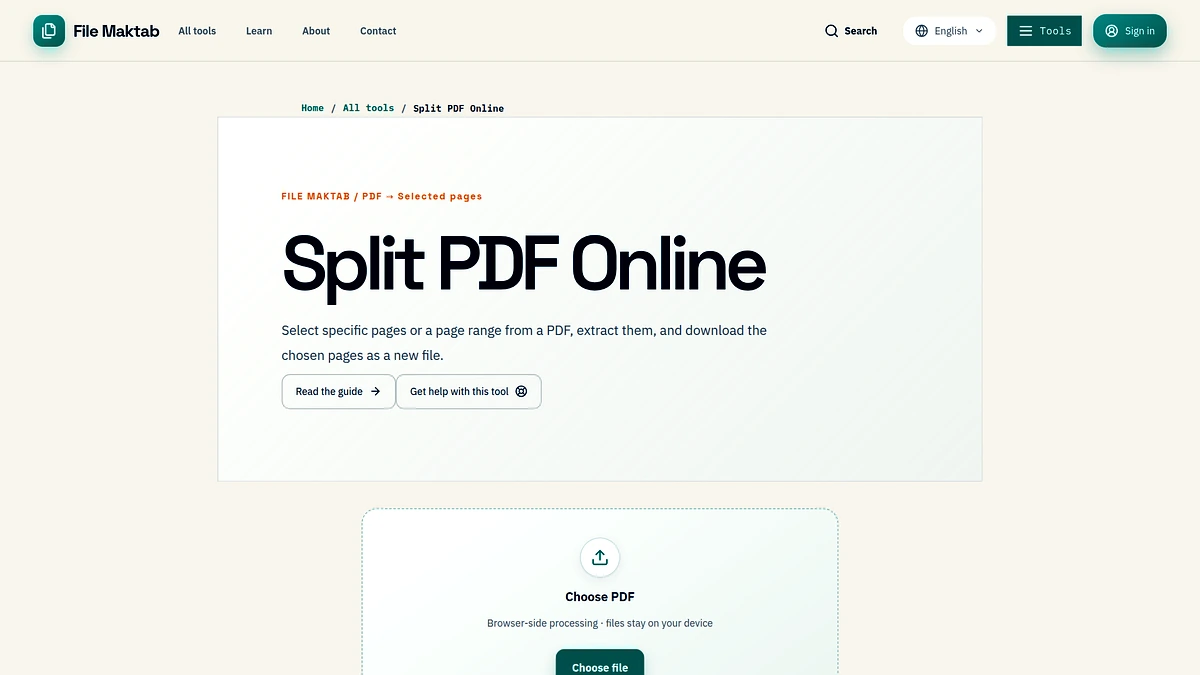
When you split pdf in adobe acrobat or use ilovepdf split pdf, your files are uploaded. A local-first tool like Filemaktab ensures that when you split pdf pages or split pdf into individual pages, the document stays on your hardware. This is the easiest way to split pdf without uploading, split pdf without login, and split pdf without limit.
Frequently Asked Questions
How do I split PDF files for free?
Use a local browser-based tool like Filemaktab. Drag your file, choose your split mode, and download without paying or creating an account.
Is it safe to split PDF online?
Only if the tool processes files locally in your browser. Cloud tools upload your files to a server, which is a privacy risk. Filemaktab keeps files on your device.
How do I split PDF pages without Adobe Acrobat?
You don't need Adobe. Open a browser-native tool like Filemaktab, load your PDF, and split it instantly without a subscription.
Can I split PDF into multiple files?
Yes. You can split by page range, extract specific pages, or split into individual pages (one file per page).
How do I split PDF in half?
Use the range splitter to select the middle page and divide the document into two files. For book scans, use the "Split Down Middle" feature.
How do I split a large PDF file (100MB+)?
Local processing relies on your device's memory, not a server limit. You can split pdf large files without uploading.
Can I split PDF without losing digital signature?
Yes, local processing preserves the document's structure, ensuring the signed byte range remains intact.
Do I need an account to split PDF files?
No. Filemaktab requires no sign-up, no email, and no login.
How do I split PDF pages on Mac?
Open Safari or Chrome, go to Filemaktab, and drag your files. There is no need to install software.
How do I split PDF pages on Windows?
Use Edge or Chrome. You can also automate tasks with Power Automate to split files locally.
What does "Zero Data Transmission" mean?
It means your files are never sent to a server. The splitting happens entirely in your browser's memory.
Can I split PDF and merge at the same time?
Yes. Split your document, then use the merge tool locally to combine the extracted pages with other files.
Can I split PDF pages into separate files?
Yes. Use the "Extract All" mode to create a ZIP file containing one PDF for each page.
How do I split PDF odd and even pages?
Use the range splitter and enter the specific page numbers for odd or even pages to separate them for printing.
What is the best free tool to split PDF pages?
Filemaktab offers a free, private, local-first tool to split PDF pages without uploading.
File Maktab content is educational and reflects current tool limits. No affiliate links are active in this version.