How to Extract Pages from a PDF Locally (No Upload)
Need only a chapter, invoice, signed page, or appendix from a long document?
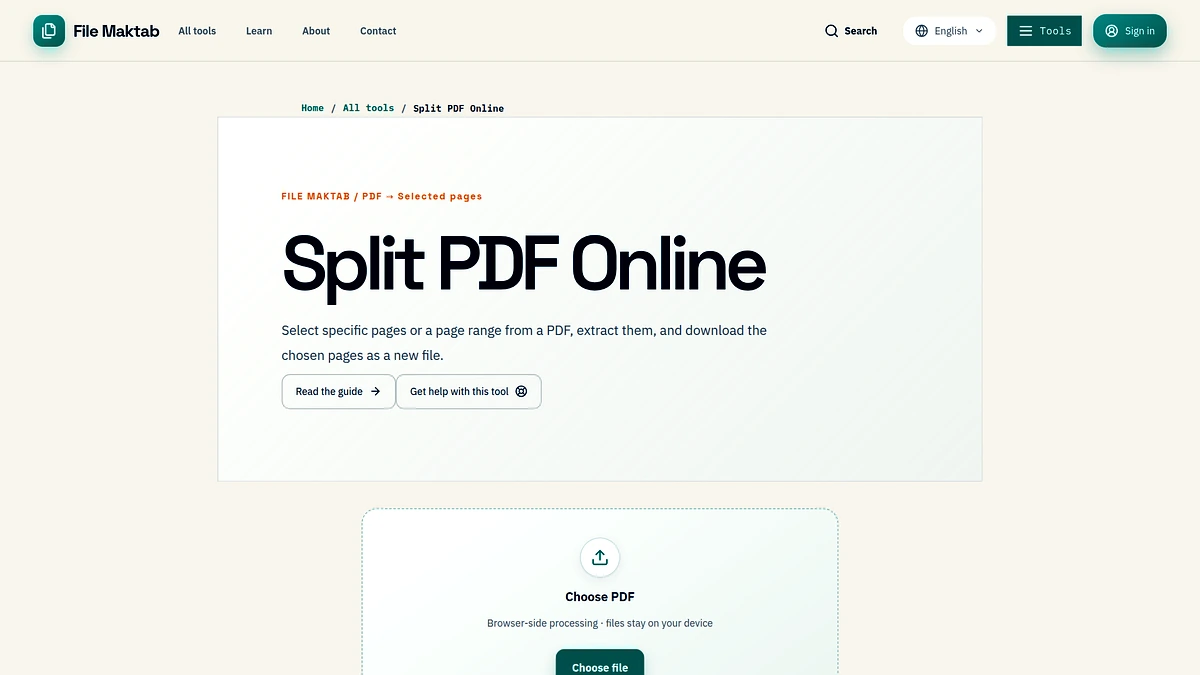
Extract Pages NowYou can extract pages from PDF without sending the document to a processing server. File Maktab’s Split PDF workflow reads one selected file in your browser, lets you choose the pages, and creates a separate PDF copy for download.
This guide explains the local workflow and its real limits before you begin. The current tool accepts one readable PDF up to 25MB per file. It does not provide a password prompt, accept a 100MB PDF, or export JPG images; where a task falls outside that scope, the sections below explain what to do instead.
When people search for extract pages from pdf online or extract pages from pdf free, they may find cloud services that require an upload. A browser-based tool can be a different option: the page loads online, but the selected PDF is handled locally for this split operation.
The Hidden Security Cost of Free Online PDF Splitting
“Online” describes where you open a tool; it does not tell you where document processing happens. With an upload-based splitter, you select a file, transfer it to a service, wait for the service to create an output, and download that output again. The service may delete working copies on a schedule, but during processing the document has crossed the boundary of your device. For a public brochure, that may be acceptable. For a pay statement, case file, medical referral, contract, or identity record, it is worth asking whether that transfer is necessary.
Local processing changes the data path. In File Maktab’s Split PDF tool, the browser reads the chosen file and performs page extraction on the device. The source PDF is not sent to a PDF-processing server by this workflow, and the original remains the file you selected rather than being overwritten by the new extract. The website still needs a connection to load its code, and no browser workflow can make a document safe after you choose to email or share it; the specific benefit is that the file contents do not need to be uploaded for this page operation.
That distinction is practical, not a blanket security guarantee. A local tool cannot decide whether the recipient is authorized, whether your computer is managed safely, or whether the final attachment belongs in a particular system. Before working with confidential information, consider your organization’s policy, use a trusted device, and keep the source until the extracted copy has been checked. Choosing local extraction reduces one avoidable copy and one transfer; it does not replace access controls, encryption, or document-handling rules.
Understanding Client-Side PDF Extraction
Client-side extraction means the browser performs the requested operation using the PDF selected from your device. The website provides the interface and processing code; after you choose a file, the browser reads the file data, determines the page count, and builds a new PDF from the selected page objects. This is not the same as taking screenshots of pages. Text and vector content are copied as PDF page content, so the operation is not intended to rasterize a page or recompress its images.
There are still device limits. The current Split PDF tool accepts one PDF at a time and caps each file at 25MB. Page count, embedded images, available memory, browser implementation, and other open tabs all affect how comfortably a device can process a document. A smaller file with a few dense pages may behave differently from a scan with hundreds of large page images. The tool does not promise unlimited size simply because processing happens in a browser.
The local path also has a clear boundary around encryption. The current interface does not ask for a password. If a document is encrypted or restricted in a way that prevents the PDF library from opening it, extraction may fail. Do not try to bypass access controls; if you are authorized, obtain an accessible copy through the document owner or use an approved application that can open the file with the correct credentials.
Finally, local processing is not the same as regulatory certification. A browser-based workflow may help avoid transmitting a document to a third-party processing server, but it does not by itself make a workflow HIPAA-compliant, GDPR-compliant, or approved by an employer. Those decisions depend on the full system, the people involved, retention rules, contracts, and organizational controls.
How to Extract Specific Pages from a PDF (Step-by-Step Guide)
Before starting, make a note of the physical page numbers you need. PDF page 1 is the first page in the file, even when that page is a cover or blank. Printed page numbers can start later or use Roman numerals, so a printed “5” may not be the fifth page in the PDF viewer. Use the viewer’s page counter to avoid extracting the wrong range.
- Keep the original. Work from a copy or retain the source PDF until you confirm the extract is correct. Check that it is a readable PDF smaller than the tool’s 25MB limit.
- Open Split PDF. Use the File Maktab tool at /tools/split-pdf, then choose one PDF from your device. The selected document is handled in the browser for this operation.
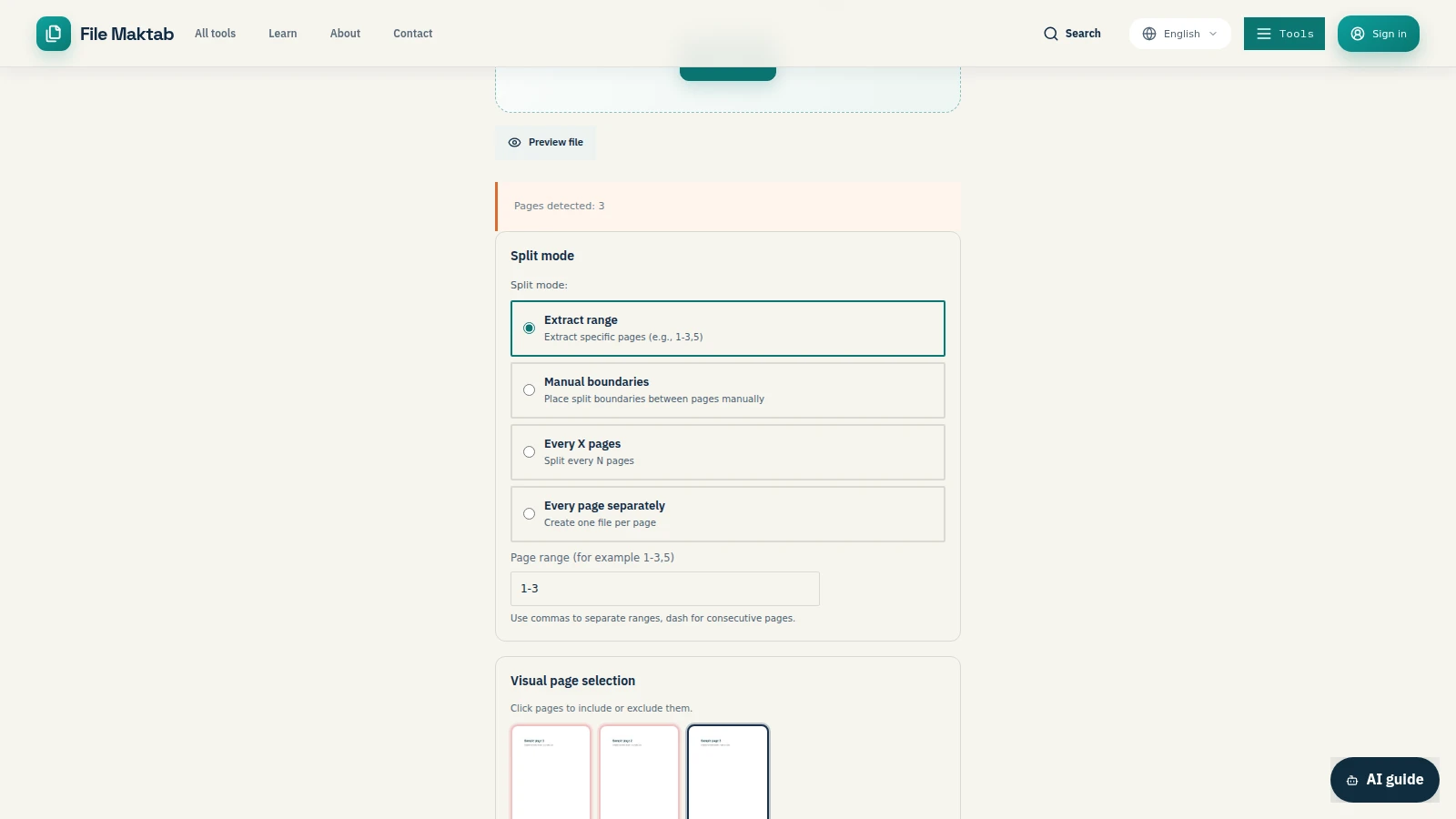
- Select pages. In Extract mode, enter a single page, a range such as
5-10, or a comma-separated selection such as1,4,9. You can also use the visual page selector to choose pages and review the proposed output. - Check the selection. Compare the preview, page count, and range with your notes. If you enter separated ranges, check that every number is a physical PDF page and that the chosen order is intentional.
- Create and download. Run the extraction and save the new PDF. The original is not replaced. Open the downloaded file and check its first and last pages, page count, order, and legibility before sending it.
For example, to keep pages 5 through 10, use 5-10. To make one extract with pages 1, 4, and 9, use 1,4,9. The parser removes duplicate page selections, so repeating a number will not create a second copy of that page. If a requested range runs past the end of the file, confirm the final selection in the preview rather than assuming missing pages were added.
The process answers the common query how to extract multiple pages from pdf at once: select all of the required pages in one range or list, review them together, then create one new PDF. If you instead need one file for each page, choose the workspace option that makes every page its own output; that is a different result from creating one multi-page extract.
Handling Advanced Scenarios: Locked PDFs, Large Files (100MB+), and Digital Signatures
Password-protected files. If you are looking for a way to extract pages from password protected pdf files, note that this tool has no password-entry field. A PDF that requires a password may fail while loading. If you are authorized to work with it, ask the owner for an accessible copy or use a trusted local PDF editor with the password. Do not remove a restriction or signature without permission, and do not upload a confidential file to an unfamiliar service just to get past the error.
Files larger than 100MB. The current limit is 25MB per file, so File Maktab cannot extract pages from pdf more than 100 mb directly. Trying to force a larger file into the browser is not a supported workaround; it may be rejected before processing or consume more memory than the device can provide. If you need to work with a 100MB document, use an approved desktop PDF application that processes the file locally, or have an authorized colleague create smaller source documents. If compressing a copy is appropriate, inspect its quality and retain the uncompressed source. Do not split a confidential file through an unapproved upload service just to meet the size limit.
Digital signatures. A digital signature is designed to prove something about a particular signed file and its bytes. Creating a new PDF from selected pages is a document modification, so you should not assume a signature on the source will remain a valid signature on the extracted copy. Keep the signed original, verify the new file in a PDF reader, and ask the signer or records team how extracts should be authenticated if the signature is legally or operationally important.
Forms, links, and outlines. Page appearance may be retained while document-level features do not transfer exactly. Bookmarks, internal destinations, form fields, comments, and other interactive elements can depend on document structures beyond the visible page. Open the output in the reader your recipient will use and test any feature that matters; never treat visual similarity alone as proof that a form or navigation link is intact.
How to Extract Pages as Images (JPG/PNG) and Keep Bookmarks
The Split PDF tool produces PDF output. It does not turn each selected page into a JPG or PNG, and a PDF page extract is not a substitute for an image export. If the goal is to extract pages from pdf into jpg, open a PDF-to-JPG tool instead, choose the pages or document according to that tool’s controls, and review the exported image resolution. Text in an image will no longer behave like selectable PDF text unless a separate OCR workflow is used.
For PNG output, choose a PDF-to-PNG workflow when the destination requires that format. An image export renders page content as pixels: text may look sharp at a suitable resolution, but it is not the same as retaining searchable text or vector elements in a PDF. Compare small print, stamps, signatures, and line art at the size the recipient will view or print. Keep the original document when anyone may need to search, copy, or verify content later.
Bookmarks are different from page content. A bookmark outline belongs to the document’s navigation structure and may point to page destinations that are absent or changed in a smaller extract. The extracted file can contain readable pages without preserving the source’s complete outline. If the outline is essential, use an editor that explicitly supports bookmark management and inspect every destination after extraction.
Internal links deserve the same check. A link may have been created for a page that was not included, or it may rely on a destination stored at document level. Do not promise that every cross-reference remains active after page extraction. Test important links in the new file, and provide a note or corrected index when the output will be used as a formal reference packet.
Split and Combine PDFs Without Leaving Your Browser
Many tasks use both operations. You might extract an appendix from a report, then combine that appendix with a cover sheet; or split a large packet into sections and combine selected pages into a smaller review bundle. Use Split PDF when you want to select pages or divide one PDF into groups. Use Merge PDF when you want to combine separate PDFs. The available local tools keep their processing in the browser, subject to each tool’s current input limits.
Plan the final order before combining. If the new packet needs a cover, an approval page, and two extracts, write down that sequence first. After extracting, open each output and confirm its contents; after merging, check the first and final pages again. This short review can catch a mistaken range, a duplicate page, or an unexpected order before a recipient relies on the document.
“Split and combine PDF” can mean several different things. One user may want a single extract, another may need multiple chapter files, and someone else may mean join unrelated source documents. Choose the operation based on the files you have and the number of outputs you need, not only the label of the tool. If a split creates several files, name them clearly and keep a copy of the original packet as the reference source.
Why Choose Local PDF Extraction Over Adobe Acrobat
A browser-based extractor is useful when your task is narrow: select several pages, create a new PDF, and avoid installing a full desktop editor. It can be convenient on a personal computer where you are allowed to use the browser, and the file-selection workflow is straightforward for a small document that meets the 25MB limit. You can open the tool, choose a file, enter the page range, and review the result without learning a larger editing suite.
Adobe applications may offer broader PDF editing capabilities, but available features depend on which Adobe product and plan you use. For a signed, encrypted, very large, or heavily interactive document, use a product that explicitly supports the operation you need and follow your organization’s rules. File Maktab is not a replacement for every advanced editor, nor should this guide imply that every Adobe workflow uses a remote server. Compare the actual product, the file path, and the feature you require.
The most relevant comparison is control and fit. A local browser operation avoids sending the selected PDF to a processing server through this tool, but it is limited to one file under 25MB. A desktop editor may handle a wider range of document structures, but it must be installed or approved and may have its own license, configuration, or data-handling policy. Choose the least complex permitted option that can complete the task reliably, then validate the output.
Maintaining Compliance: HIPAA, GDPR, and Local File Processing
Local processing can support a privacy-aware workflow by avoiding one transfer of document contents to a PDF-processing service. That may matter when handling personal, health, employment, or customer information. But the word “local” is not a legal status, certification, or guarantee that a workflow complies with HIPAA, GDPR, or any other rule. Compliance depends on the data, purpose, legal basis, organization, vendor relationships, access controls, retention, device security, and the policies that apply to the people processing the file.
Before using a browser tool for regulated or confidential information, check your organization’s approved-tool list and the data-handling agreement that applies. Confirm that your device is managed appropriately, that you are authorized to create an extract, and that the result will be stored and sent through an approved channel. If policy requires a validated application or audit trail, use that application even if a local browser tool appears technically capable.
For personal use, a useful habit is to minimize copies: keep the source in its approved location, save the extract to a suitable folder, remove temporary copies when policy allows, and share only the pages needed by the recipient. Local extraction can reduce unnecessary exposure, but it cannot control what happens after you download or share the new PDF.
Troubleshooting: Why Can't I Extract Pages from My PDF?
Start with the simplest checks. Confirm the extension is PDF, the file is not empty, and its size is below 25MB. If the tool reports that it cannot process the file, reload the page and choose the source again. Close applications or browser tabs that use a lot of memory, especially on a phone, then retry with a local copy stored on the device rather than a temporary cloud preview.
Next check the page range. The first physical page is page 1, including covers, blank pages, and front matter. A range such as 5-10 refers to the PDF’s page counter, not printed labels. Check that the last page exists and that the range is written with a hyphen; use commas between separate numbers or ranges. If the preview is empty, choose a valid page or range before running extraction.
Password protection is another common cause. The current interface does not have a password box, so an encrypted PDF may not load. If you are permitted to process the document, obtain an accessible version from its owner or use an approved application that can open it with the right credentials. A damaged, malformed, or unusual PDF may also fail even when it opens in a different reader; try exporting a fresh copy through a trusted local app if you have authorization.
If processing starts but the output is wrong, do not discard the source. Reopen the downloaded file and compare the page count, order, and content against your selection. If the PDF relies on forms, bookmarks, internal links, or a digital signature, test those features separately. For an output that looks blank or has missing text, open it in a second PDF reader; if the content is still missing, return to the original and use a compatible editor instead of repeatedly overwriting the same result.
Finally, distinguish file-size problems from memory problems. A file below the published limit can still be demanding if it contains many high-resolution scans, and a large desktop may handle it more comfortably than a phone. The published cap remains 25MB, however; troubleshooting should not be read as a way to process a 100MB file in this tool. For files over the cap, choose an approved local desktop workflow.
The Bottom Line: Secure PDF Extraction in 2026
To extract pages from PDF without a processing upload, select a readable file in a local browser tool, choose the physical pages you need, create a new copy, and inspect the output before sharing. File Maktab’s Split PDF tool supports one PDF up to 25MB, range and page selection, and several ways to divide the document. Its original source file remains separate from the new output.
Be precise about what the tool does not do. It does not accept a 100MB source, provide a password-entry control, export JPG or PNG, or guarantee that signatures, bookmarks, forms, and internal links will remain valid or functional. For those cases, select an approved application with the required capability. A responsible workflow states its boundaries before a user chooses a file.
When the supported task fits, local processing gives you a direct route from page selection to a downloaded extract without sending the document to a PDF-processing server. Keep the original, check the range, review the new file in a reader, and share only what the recipient needs. Those few steps are more dependable than trusting a filename or a completion message alone.
Choosing a Smarter Workspace for Your Documents
Use the browser-based Split PDF workspace for a small, readable document when you need one selected extract or several local output files. Use a desktop PDF editor when the document exceeds 25MB, needs a password, contains complex form or outline structures, or requires special handling for digital signatures. Use a PDF-to-image tool only when the deliverable must be JPG or PNG; images are rendered pages, not equivalent searchable PDFs.
A smarter workspace starts with three questions: where will the source file be processed, what exact output do you need, and how will you verify it? Answering those questions helps choose between a browser tool, an approved desktop application, or a managed records workflow. Keep your files where they belong, preserve the signed source, and avoid making an extra copy unless the task requires one.
How can I extract pages from PDFs for free?
Open File Maktab’s Split PDF tool, choose one PDF up to 25MB, select the pages or range, and download the new PDF. The page selection and extraction run in your browser.
Can I extract pages from a PDF without Adobe?
Yes. A browser-based PDF splitter can create a new PDF from selected pages without Adobe Acrobat. File Maktab’s current tool works locally in a supported browser and accepts files up to 25MB.
How do I extract a specific page range like 5-10?
Choose Extract mode and enter 5-10, or select those pages in the visual page selector. Check that the PDF’s physical page count—not printed page labels—matches your range.
Can I extract pages from a PDF on iPhone or Mac?
You can use a supported browser on a Mac or iPhone to select a PDF and extract pages. On phones, keep the file under 25MB and allow extra time and memory for larger page counts.
What is the difference between splitting and extracting a PDF?
Extracting keeps the pages you select in a new PDF; splitting usually describes dividing a document into two or more outputs. The right choice depends on whether you need one selected copy or several parts.
Does extracting pages preserve internal links and bookmarks?
Do not assume document-level bookmarks or every internal link will remain usable in an extracted copy. Check the output in your PDF reader, especially when navigation links or outlines matter.
Can I extract pages in a different order?
The page-range field accepts comma-separated page numbers and ranges, such as 5,2,7, and the preview lets you review the selection. Verify the output order before sharing it.
How do I handle PDFs larger than 100MB?
File Maktab’s current Split PDF tool has a 25MB per-file limit, so it cannot process a 100MB PDF. Use a trusted local desktop PDF application or create smaller source files with an authorized tool, then verify each result.
Is my PDF uploaded to a server?
The Split PDF page processes the selected document in your browser; the document bytes are not sent to a PDF-processing server by this workflow. This does not by itself make every website interaction or the overall workflow compliant with a regulation.
Does splitting reduce quality?
Extracting pages creates a new PDF by copying selected page content rather than rasterizing it or compressing its images. Still, compare important text, forms, links, and signatures in the downloaded copy before relying on it.
Why can't I extract pages from my PDF? (Troubleshooting)
Check that the file is a readable, non-empty PDF under 25MB and that the selected page range exists. Password-protected, damaged, or unusually complex files may not load; this tool has no password-entry control.
Can Adobe Reader extract pages for free?
Adobe Reader is primarily a viewer and does not provide the same page-extraction workflow as a PDF editor. Adobe product features vary by application and plan, so check the current product you have before starting.
How do I extract multiple pages from a PDF at once?
Enter a range such as 5-10 or comma-separated selections such as 1,4,9, or click several pages in the visual selector. The tool produces a new PDF containing the selected pages.
How do I extract pages from a PDF into separate files?
Use the split workspace’s every-page mode to create individual page outputs, or divide the document into groups using split boundaries. Download each result and confirm its filename and page contents.
Can I extract pages as images (JPG)?
The Split PDF tool outputs PDF files, not JPG images. To create images, use a PDF-to-JPG converter instead and review the exported pages for resolution and legibility.
File Maktab content is educational and reflects current tool limits. No affiliate links are active in this version.