The Ultimate PDF Merger and Splitter Toolkit
A free pdf merger splitter guide for merging, splitting, extracting, deleting, and organizing PDF pages locally in your browser.
Why Choose a Local-First PDF Toolkit?
Local PDF processing keeps the work in your browser instead of sending a document to a remote upload queue. That can reduce waiting time and gives you a clearer privacy boundary for contracts, forms, invoices, and other sensitive files. A no upload PDF tool also lets you keep the original on your device while downloading a separate result.
This free PDF toolkit is intentionally task-focused: choose the operation you need, review the result, and keep the source until you are satisfied. Browser processing still depends on your device memory and the file limits shown in each tool, so review large or image-heavy PDFs before sharing them.
How to Merge and Split PDFs Locally
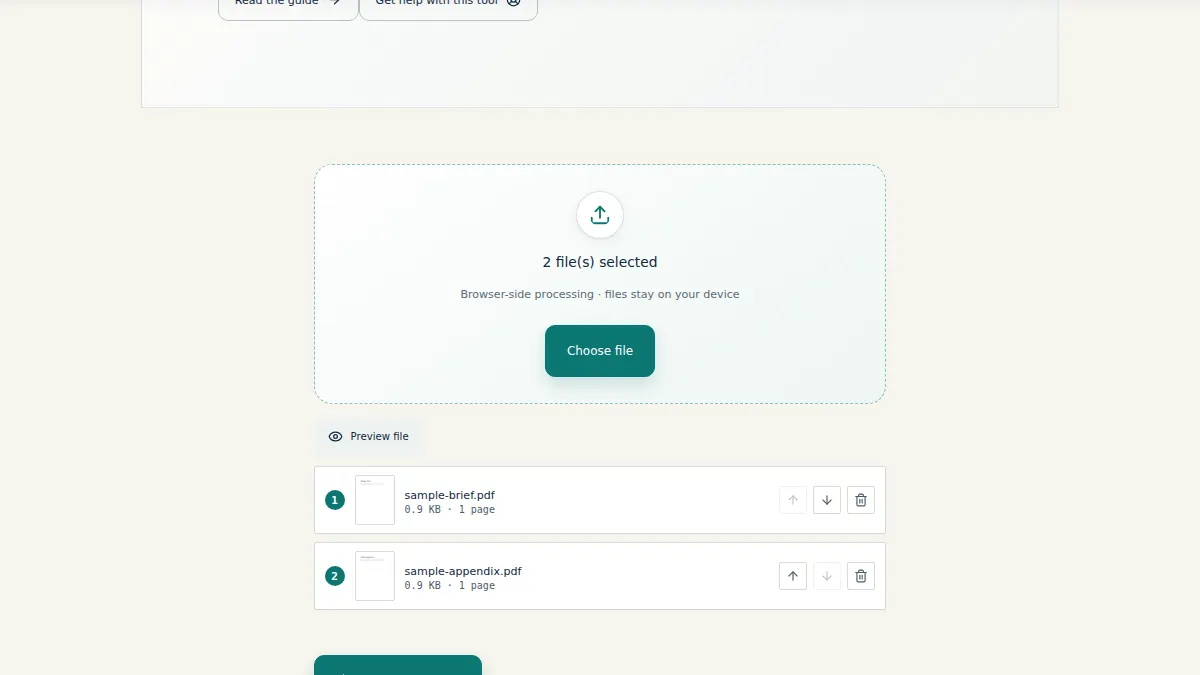
Start with Merge PDF when you have two or more source documents and want one combined file. Review the source-file order before running the merge. Start with Split PDF when you need a selected range or a smaller extract from a longer document.
- Choose the workflow. Merge combines files; split keeps selected pages.
- Select the source PDF. Keep a backup of the original document on your device.
- Set the page operation. Use page numbers, ranges, or the visual selector where available.
- Review and download. Check page count, order, and readability before sharing.
How to Extract Specific Pages from PDF
Use the extract pages from PDF tool when you need an appendix, invoice, chapter, or a few selected pages from a larger document. Enter a single page, a range such as 2-5, or a comma-separated selection such as 1,4,9. PDF page numbers count from the first physical page, including covers and blank pages.
The result is a new PDF containing only the selected pages. The source remains unchanged, and OCR is not needed because extraction copies whole pages rather than reading their text.
Extract specific pages nowHow to Delete Unwanted PDF Pages
Choose Delete PDF Pages when you want to remove blank pages, duplicate scans, a cover, or a confidential appendix while keeping everything else in its original order. Enter the pages to remove, download the separate result, and inspect it before replacing any file.
Deleting and extracting are opposite operations: deletion keeps all pages except the listed ones, while extraction keeps only the listed ones. Choosing the right operation is faster and reduces page-number mistakes.
How to Rearrange and Organize PDF Pages
Use Reorder PDF Pages to organize PDF pages after scanning, signing, or combining documents. Enter every page number in the new sequence once, for example 3,1,2. The page content stays the same; only the order changes. Always open the result and check the first, last, and any signature pages before sharing.
Frequently Asked Questions
What is a PDF merger splitter?
It is a toolkit for combining PDF files and extracting, deleting, or organizing pages without changing the original file.
Can I merge and split PDFs for free?
Yes. File Maktab provides browser-based PDF workflows with no watermark and no required upload.
Are my PDFs uploaded?
The linked local PDF tools process documents in your browser, so the file stays on your device during the workflow.
What is the difference between merge and split PDF?
Merge combines multiple PDF files into one. Split or extract creates a new PDF containing only the pages you select.
How do I extract specific pages from a PDF?
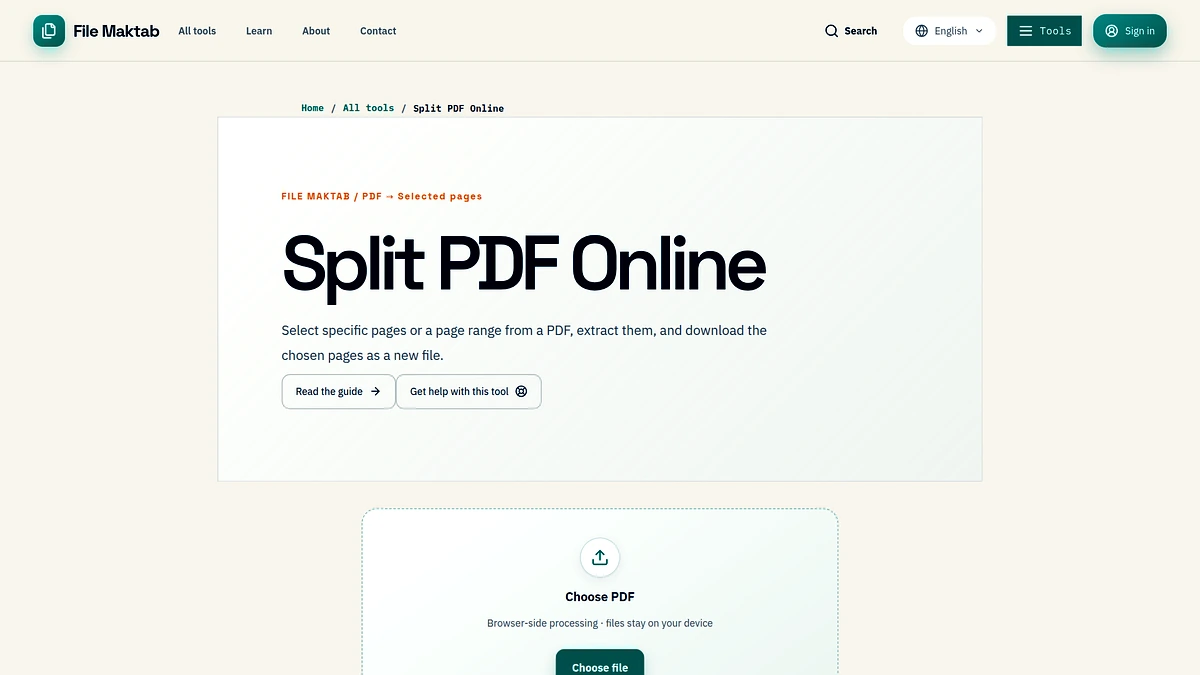
Open the Split PDF tool, select page numbers or thumbnails, and download the selected-page copy.
How do I delete pages from a PDF?
Open Delete PDF Pages, enter the unwanted page numbers or ranges, then download the remaining pages as a new PDF.
How do I rearrange PDF pages?
Open Reorder PDF Pages and enter every page number in the new order exactly once, then review the downloaded copy.
Does local PDF processing work on mobile?
It works in modern mobile browsers within the device's available memory and the file limits shown by the tool.
Will these tools add a watermark?
No. The linked local PDF workflows do not stamp a watermark on the downloaded result.
Should I keep the original PDF?
Yes. Keep the source until you have checked the page count, order, and content in the new PDF.