Best Free PDF Merger 2026: 6 Tools Tested + Merge Now (No Upload)
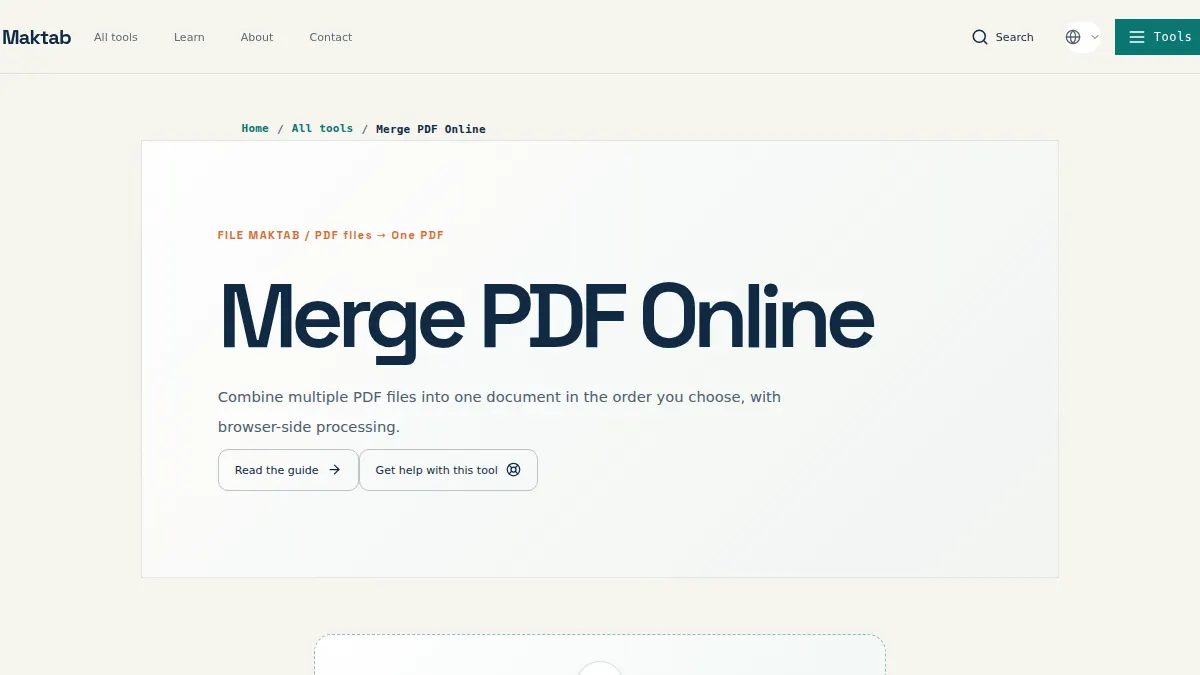
Stop Uploading Sensitive Documents. Merge PDFs Locally.
Most free tools upload your files to a server. We tested 6 tools — only 2 respect your privacy. Try the #1 pick for free, no signup, no watermark, no upload.
Merge PDF Now (No Upload) →Try File Maktab Free — Your Files Never Leave Your Device
Unlike other tools, File Maktab processes everything in your browser. There is no upload queue, no server-side copy, and no account required. It is the safest way to merge sensitive documents.
Quick Comparison: 6 Best Free PDF Mergers (2026)
| Tool | Best For | Privacy Level | Free Tier Limit |
|---|---|---|---|
| File Maktab | Sensitive documents, unlimited merges | Local (no upload) | Unlimited tasks |
| PDFgear | Large files (1,000+ pages), offline use | Local (desktop app) | Unlimited |
| Sejda PDF | Merging + editing in one place | Cloud (upload) | 3 tasks per hour |
| iLovePDF | Quick mobile merges | Cloud (upload) | 2 tasks per day |
| Adobe Acrobat Online | Industry standard, mixed page sizes | Cloud (upload) | Limited free tier |
| Foxit PDF Reader | Lightweight desktop integration | Local (desktop app) | 20MB per file (online) |
Detailed Reviews: Which Free PDF Merger is Right for You?
1. File Maktab: The Best for Privacy and Unlimited Use
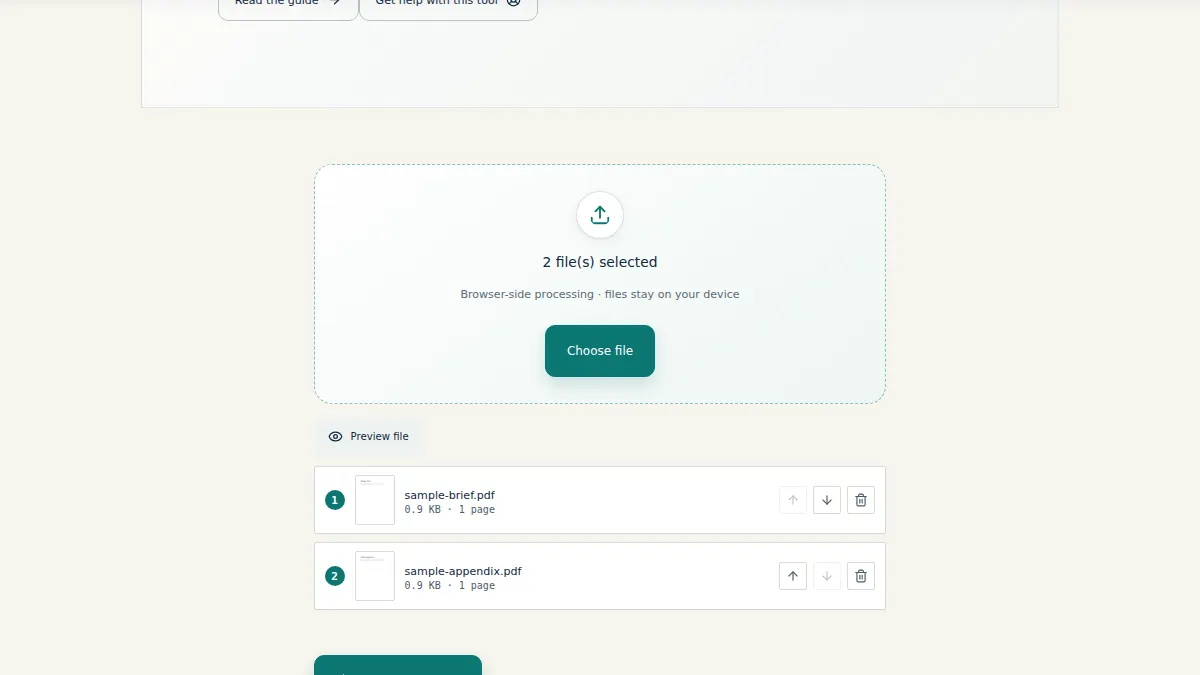
File Maktab runs the merge entirely in your browser tab. The files never travel to a server, which means there's no upload queue, no processing wait tied to your connection speed, and no copy of your document sitting in someone's temporary storage. For a legal brief, a medical record, or an internal financial packet, that architecture is the whole argument.
Privacy wins:
- Files are processed on-device — nothing is transmitted to a remote server.
- No account registration, no email capture, no verification step before your first merge.
- No watermark stamped on the output, free tier or otherwise.
- No daily task ceiling, so a twelve-file assembly costs the same as a two-file one.
- Nothing to install, uninstall, or keep updated.
The AI-assisted features help with the part of merging that actually takes time: figuring out what order the pages belong in. Instead of manually dragging thumbnails across a grid, you get suggested sequencing based on document structure.
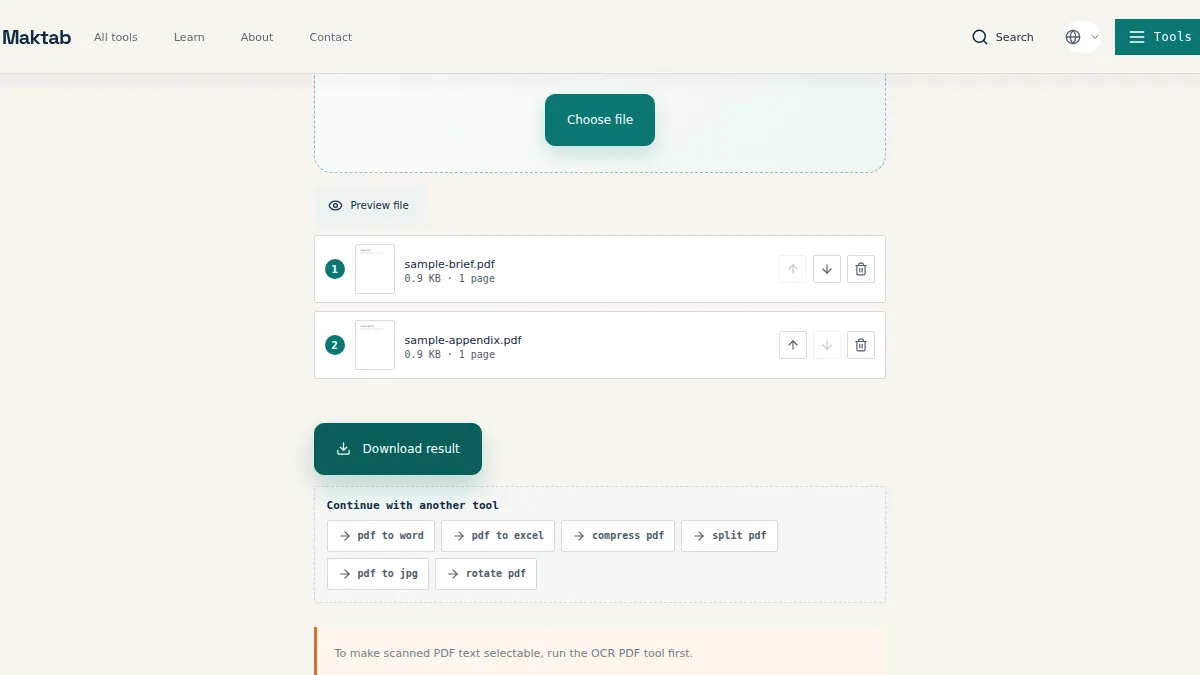
Open the merge tool and combine your first set of documents without creating anything.
2. PDFgear: The Top Desktop Alternative for Large Files
Browser-based merging has a practical ceiling. Once you're combining a thousand pages or more — discovery files, scanned archives, multi-volume reports — a desktop application handles memory better than a tab does. PDFgear is the one that comes up repeatedly in community recommendations as genuinely free, with no trial countdown and no feature paywall.
Its real strength on complex merges is structural fidelity. Internal links, cross-references, and bookmark trees survive the combination rather than flattening into dead text.
When to choose desktop over browser:
- Count your pages. Past roughly a thousand, open a desktop app rather than a tab.
- Check your sources for bookmarks or internal links worth preserving.
- Confirm you're working offline or on a restricted network.
- Install once, then merge repeatedly without reloading an interface.
- Verify the bookmark tree in the output before you archive.
The tradeoff involves installation. You're putting software on a managed machine, which some IT policies won't allow.
3. Sejda PDF: Best for Advanced Editing
Sejda has become one of the fastest-growing free PDF tools in 2025-2026, and its merge feature comes bundled with a genuinely capable editor. For users who need to merge AND edit — reorder pages, add text, redact — Sejda covers both in one place.
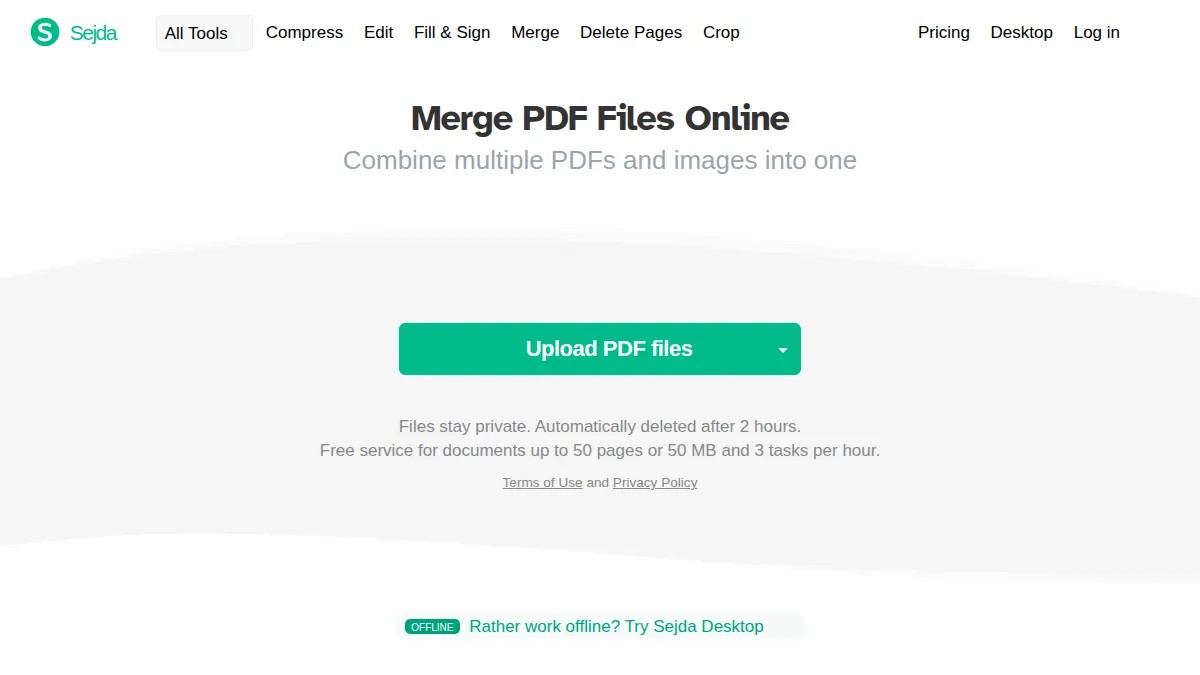
Free tier limits: 3 tasks per hour, 200 pages max, 50MB per file. Files are uploaded to Sejda's servers for processing.
When to choose Sejda: you need light editing alongside merging. When to avoid: sensitive documents (cloud processing) or heavy use (hourly cap).
4. iLovePDF: Best for Quick Mobile Merges
iLovePDF provides a comprehensive suite of PDF tools accessible from any browser without requiring software downloads — which makes it genuinely useful on a phone, where installing a dedicated app for a one-time task is more friction than the task deserves. Merging a photographed receipt into an expense report from a hotel room is exactly what it's built for.
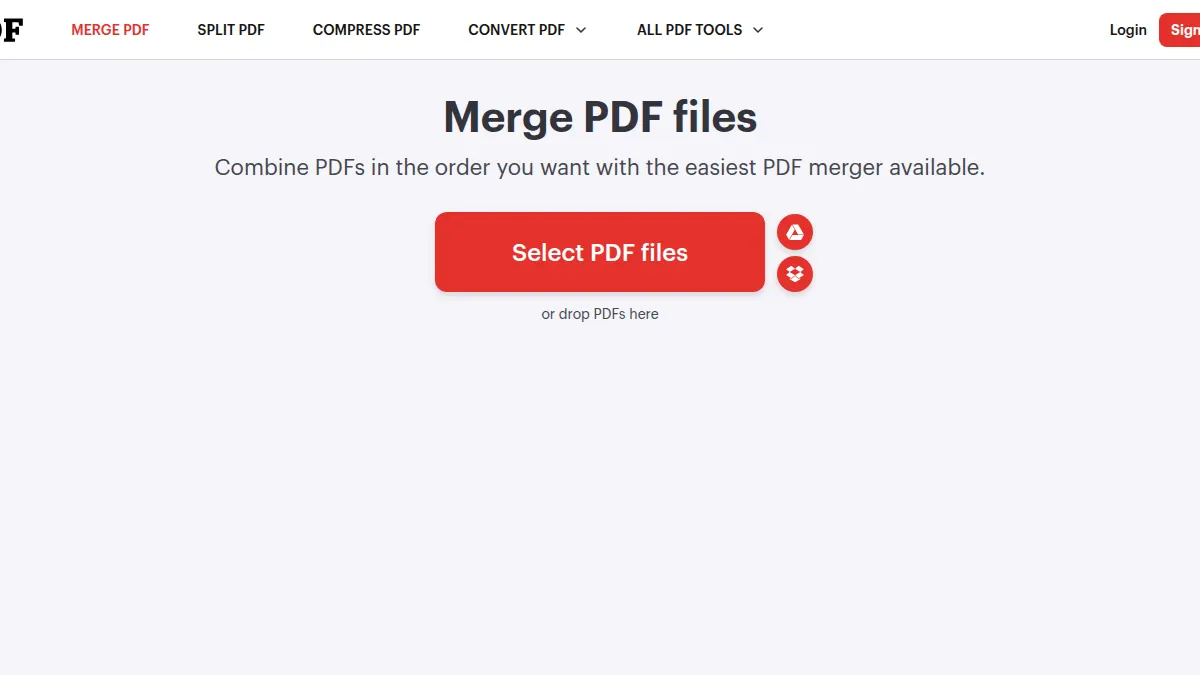
iLovePDF operates on an upload-based model. Your file goes to their servers, gets processed, and comes back. For a conference agenda or a public-facing brochure, that's fine. For an employment contract or a patient summary, it's a transfer of custody you didn't need to make.
Cloud integration is the draw here: pull from Drive or Dropbox, merge, send it back. That convenience is real, and it's also precisely the step that puts a copy of your document somewhere you don't control.
5. Adobe Acrobat Online: The Industry Standard with Limits
Adobe's online merge tool is the reference implementation. It handles the awkward cases — mixed page sizes, embedded fonts, forms with fillable fields — more predictably than most alternatives, and the text layer survives intact.
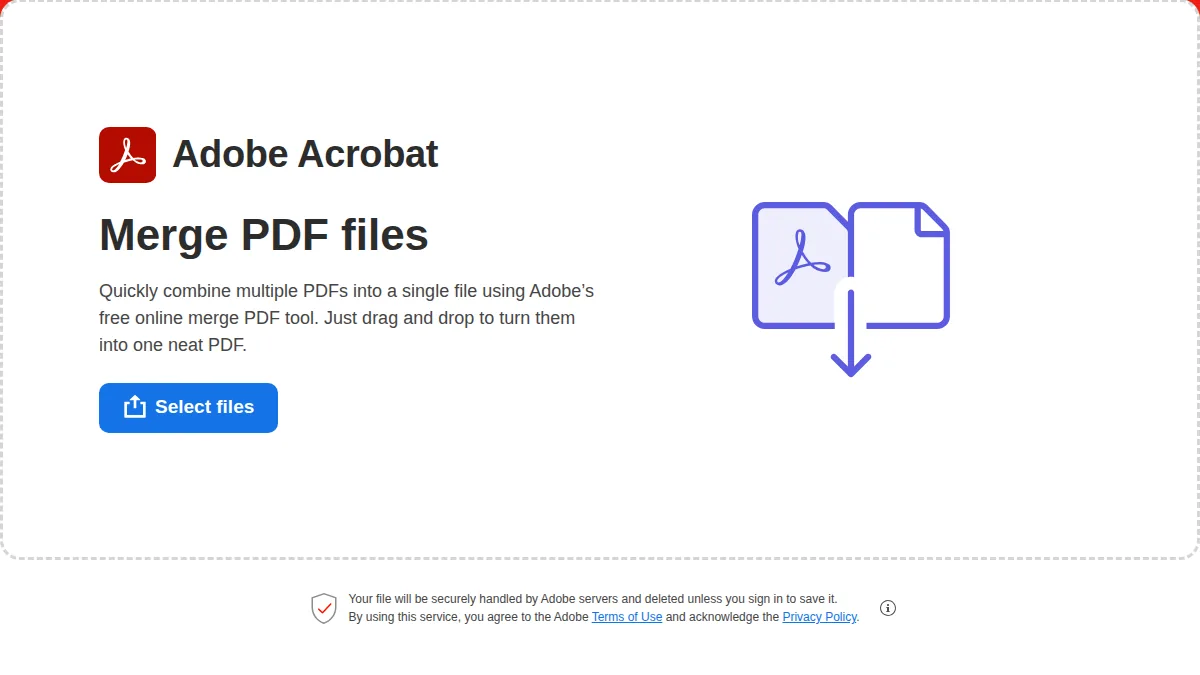
Page capacity on the free web tool is generous enough for most professional work, with a limit in the low thousands of pages per operation.
The catch: the free tier is a demonstration, not a workflow. You'll get through a first merge without much resistance, and then repeated use pushes you toward signing in with an Adobe ID. From there the interface starts routing you toward a subscription.
6. Foxit PDF Reader: Best for Lightweight System Integration
Foxit's reader is notably lighter on system resources than Acrobat, which makes it a sensible default on older hardware or locked-down work laptops. It integrates with Windows file handling cleanly.
Limitations: The free online tool caps uploads at around 20MB per file, which a single scanned document can exceed. Anything heavier has to go through the desktop application or get compressed first.
Pro-Tip: The PDF Printer method is a reliable workaround: open each document, print to the Foxit PDF printer, and append to an existing file. One caution — if your sources are scanned images rather than text PDFs, this produces a merged file with no searchable text. Run OCR on the scanned pages first.
Merge and Split PDFs in One Workflow
Most PDF workflows involve both operations: split a scanned book into chapters, then merge selected chapters into a new document. File Maktab handles both on-device — split PDF here and merge PDF here — with no upload at either step.
Beyond PDFs: Merging JPG and Images
Merging isn't only about PDFs. Scanned receipts, photos of documents, and exported screenshots need JPG to PDF conversion before they can join a PDF packet. File Maktab converts and merges in the same browser session.
File Maktab vs. Smallpdf: The Key Difference is Privacy
Smallpdf is one of the most popular PDF platforms, but it comes with a major trade-off: your files are uploaded to their servers. This is fine for a public brochure, but it's a risk for sensitive documents like contracts, medical records, or financial statements. File Maktab, on the other hand, processes everything locally in your browser. Your files never leave your device. For anyone handling sensitive information, this is not just a feature — it's a requirement.
Why Privacy Matters in 2026 (And Why Local Processing Wins)
Every time you upload a file to a free online tool, you are trusting that service with your data. Even with strict privacy policies, your document sits on a server you don't control. For businesses and individuals handling confidential information, this is an unnecessary risk. Local-first tools like File Maktab eliminate this risk entirely by ensuring your files never leave your computer.
✅ Local Processing
File Maktab
Files stay on your device
No server copy
No upload wait
⚠️ Cloud Processing
Most competitors
Files uploaded to servers
Temporary server copies
Upload delay
Frequently Asked Questions
Is it safe to merge PDFs online?
Yes, if the tool processes files locally (like File Maktab). Tools that upload to a server expose your documents to third parties.
What is the best free PDF merger without watermarks?
File Maktab offers unlimited, watermark-free merging. Most competitors add watermarks or daily limits.
Can I merge PDFs on my phone for free?
Yes. Browser-based tools like File Maktab and iLovePDF work on mobile without installing apps.
What is the difference between local and cloud PDF merging?
Local processing runs in your browser — files never leave your device. Cloud merging uploads files to a server.
How do I merge PDFs without losing quality?
Avoid compressing before merging. Use a tool that preserves PDF structure, like File Maktab or Adobe.
What is the best PDF combiner and splitter?
File Maktab combines both — merge PDFs and split them back, all on-device without uploading.
Can I merge PDF and JPG files together?
Yes. Convert JPGs to PDF first, then merge. File Maktab handles both steps locally.
Is Sejda PDF safe to use?
Sejda processes files on its servers. Safe for non-sensitive documents, but not for confidential files. Local tools are safer.
Which PDF merger works without sign-up?
File Maktab requires no account, no email, and no verification. Open the tool and merge immediately.
How do I merge PDF files on Windows for free?
Use a browser-based tool like File Maktab (no install) or download PDFgear (desktop). Both are free with no watermark.
What is the best free PDF merger for Mac?
File Maktab works in any browser on Mac, with no installation. For desktop, PDFgear is also available for macOS.
Can I merge more than two PDFs at once?
Yes. File Maktab has no limit on the number of files you can merge in a single session.
Do I need to install software to merge PDFs?
No. File Maktab runs entirely in your browser. There is nothing to download or install.
Is there a file size limit for merging PDFs?
File Maktab processes files locally, so the limit is your device's memory. There is no arbitrary server-side cap.
What is the fastest way to merge PDFs?
Open File Maktab's merge tool, drag your files in, and the processing happens instantly on your device — no upload wait.
Final Verdict: Which Free PDF Merger Should You Choose?
File Maktab is the best free PDF merger for privacy-conscious work. Files are processed in your browser and never uploaded, there's no watermark on the output, and there's no daily task ceiling. It's the clearest answer to anyone searching for a free PDF merger with no sign-up required.
PDFgear is the choice for massive document projects. For 1,000-page assemblies where bookmarks and internal links need to survive, a desktop application handles the memory load better.
Sejda PDF is the pick if you need editing alongside merging.
Adobe Acrobat Online and iLovePDF are reliable for one-off, non-sensitive tasks. Both are dependable and both upload your file to a remote server.
Check whether your sources are scanned images before you merge. Combining scans produces a file with no searchable text unless you run OCR first.
Worth doing this week: look at the last five documents you merged. How many contained a name, an address, a salary figure, or a client identifier? If the answer is more than zero and you used an upload-based tool, your workflow has a gap that costs nothing to close.
File Maktab content is educational and reflects current tool limits. No affiliate links are active in this version.